
Using Japanese on a Mac
| Macintosh OS X comes with support for different languages built-in. To use these languages, go to System Preferences, click on the International icon. |  |
| Click on the Input Menu tab and click the checkboxes next to the languages you want to use. For Japanese, check the box next to Kotoeri.Also, check the box next to Show input menu in menu bar. | 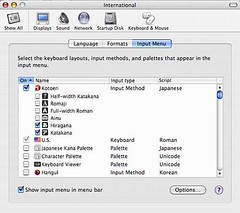 |
| An icon with an American flag should appear in the upper right section of the menu bar. Click on this icon to change the language that you type in. | 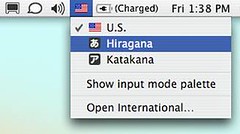 |
| To type in Japanese, select the input method (e.g. Hiragana) and type the Romaji. A window should pop up that displays the text you typed in hiragana. If you want kanji, press the space bar and the kanji should appear. If that is not the kanji you want, press the space bar again and you will be presented with a list of possible kanji to choose from. Select the one you want and hit Return. |

 ChanomiTalk